Connecting a WooCommerce store
WooCommerce runs on your own hosting, so there is no app to install. You create a key inside your store and paste it here. It takes about two minutes.
What BirunX reads from your store
The key you create gives BirunX access to your own WooCommerce data through the interface WooCommerce provides for it. BirunX reads your orders and your products, and writes nothing to your store except the two order notifications described below.
No cost or purchase price is ever read from WooCommerce. Your product costs come only from what you enter or upload in BirunX, so a plugin in your store can never overwrite a figure you typed yourself.
Creating the key inside your store
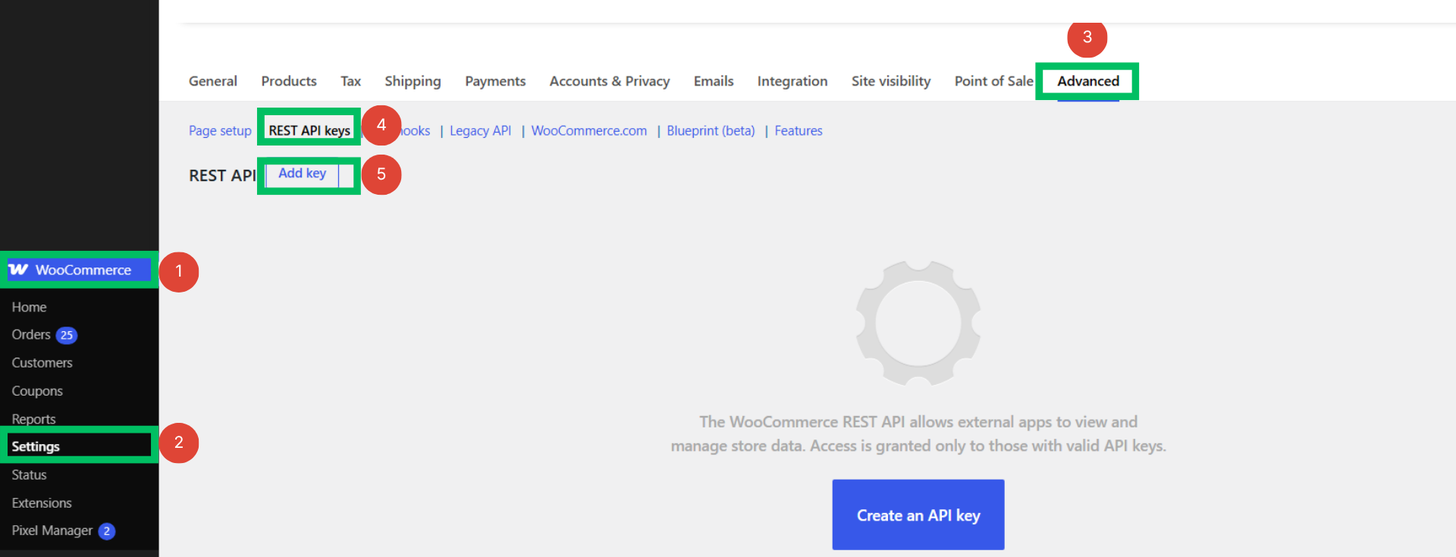
- In your WordPress dashboard open WooCommerce, then Settings, then Advanced, then REST API.
- Press Add key.
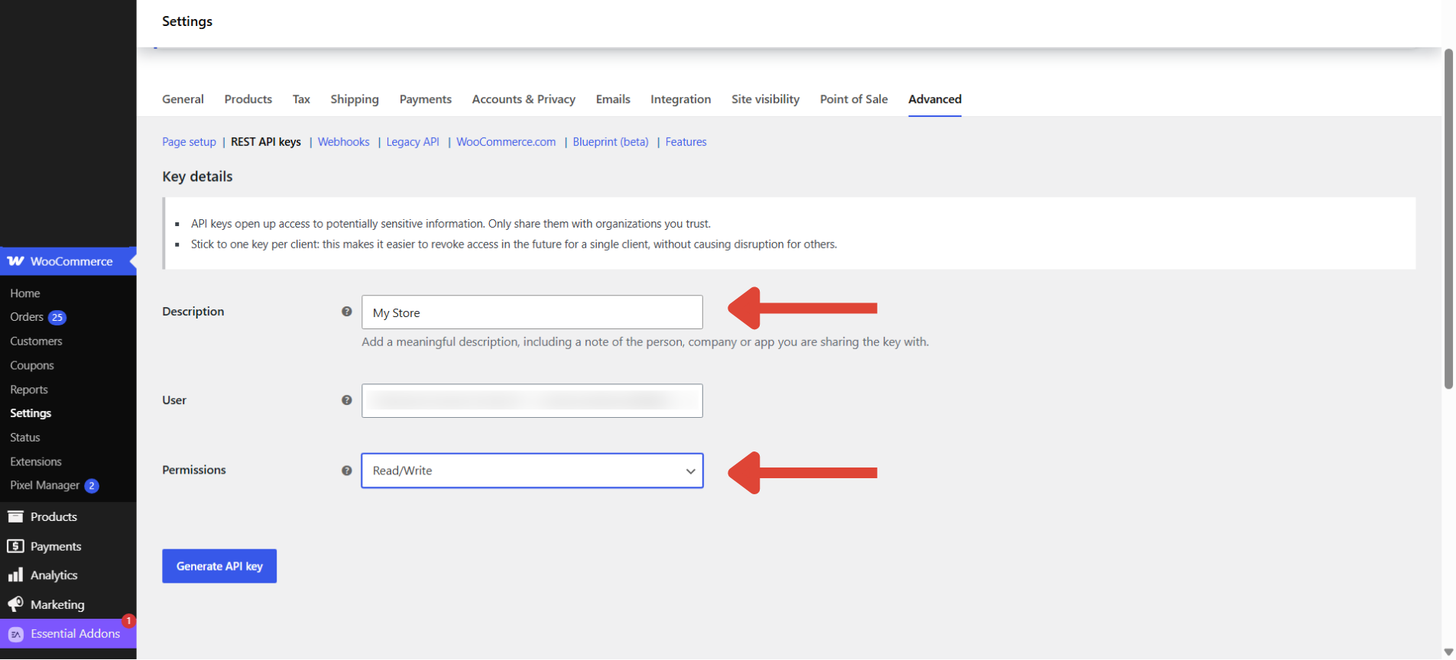
- Fill the three fields: any description you like, yourself as the user, and Permissions set to Read/Write.
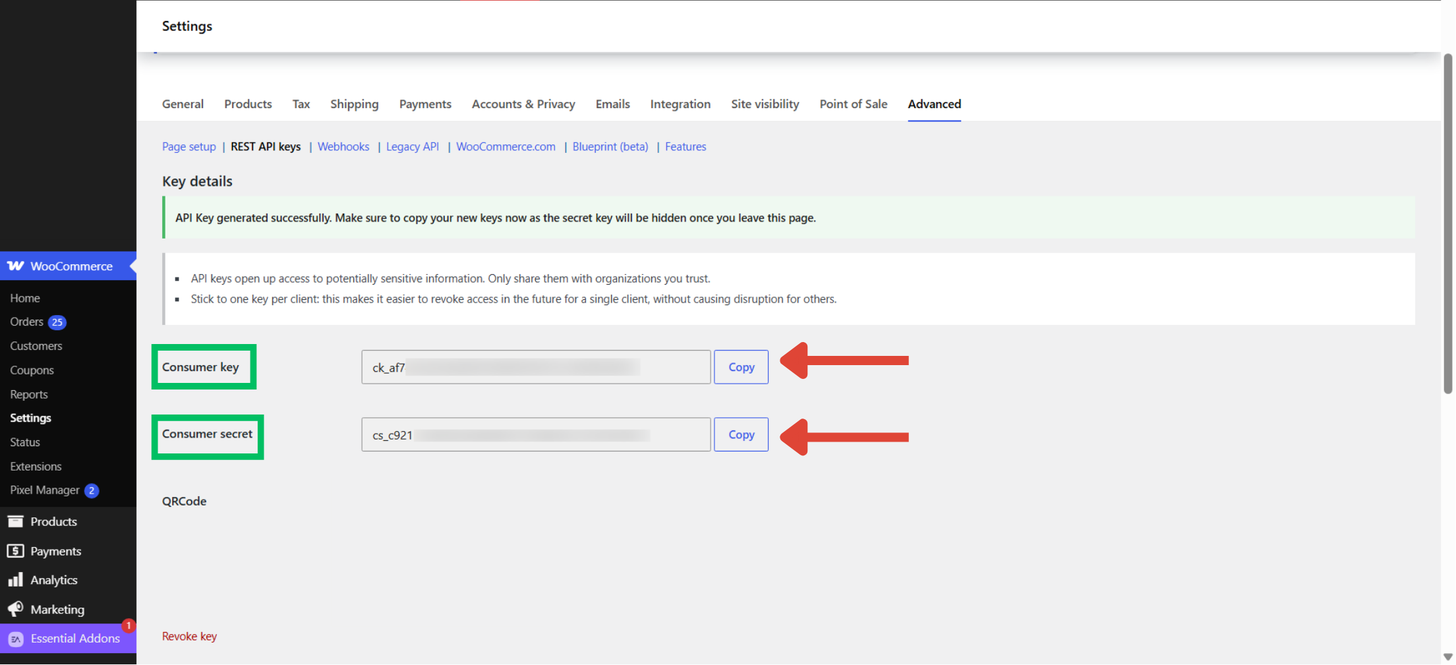
- Press Generate API key. WooCommerce then shows one line beginning ck_ and one beginning cs_.
- Copy both lines before you leave the page.
Connecting in BirunX
- In BirunX choose WooCommerce and enter your store address.
- Paste the ck_ line into Consumer key and the cs_ line into Consumer secret.
- Press Connect store.
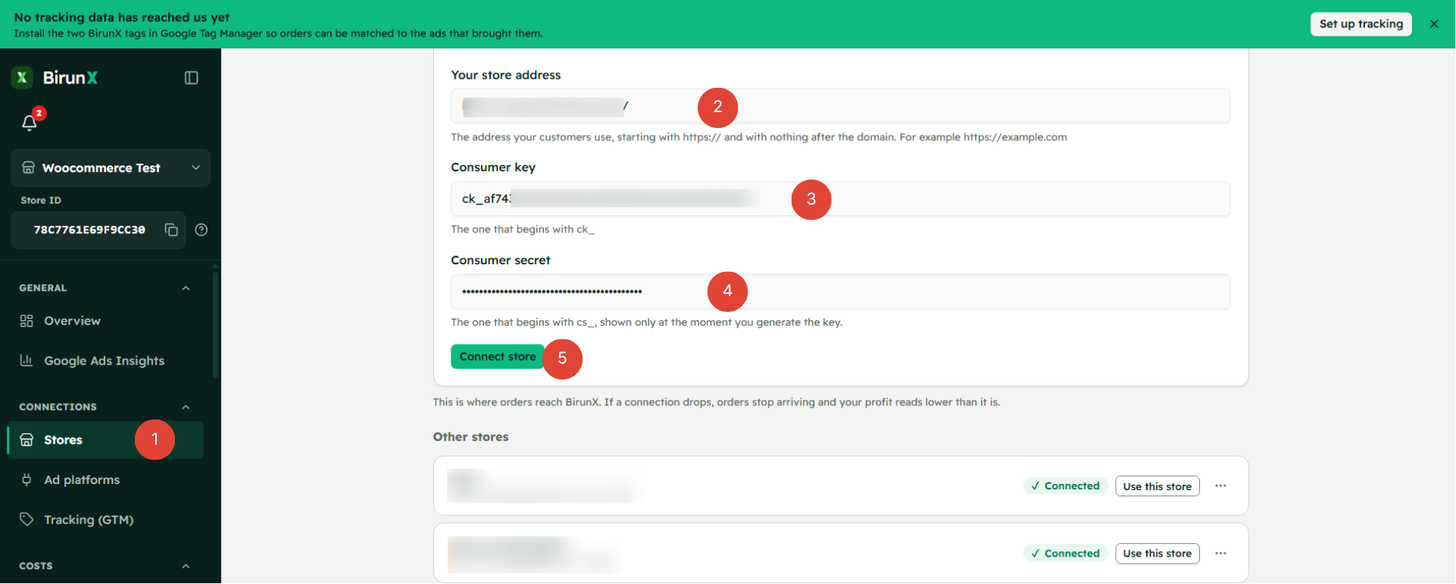
The store address is the one your customers use. It must start with https:// and stop at the domain — no page after it, no question mark, and no username inside it. For example https://example.com
BirunX tests the key against your store before saving anything. If your store refuses it, nothing is stored and you are told which of the causes below it was.
If the connection is refused
| What you are told | What to do |
|---|---|
| This key can read your store but not write to it | Open the key again in REST API and change Permissions from Read to Read/Write. Nothing else needs changing. |
| Your store refused this key pair | Copy both lines again — the secret is long and easy to cut short — or create a new key and use that. |
| That address answered, but not as a WooCommerce store | Check it is the address your customers use, and that WooCommerce is installed and active on it. |
| Your store did not answer | Open the address in a browser to be sure the site is up, then try again. |
| We could not read that as a store address | It has to start with https:// and end at the domain. |
| This store is already connected to another BirunX store | Disconnect it there first. One order must never be counted twice. |
Disconnecting
Disconnecting in BirunX deletes the key from our side. Two things stay inside your own store, and BirunX cannot remove either one once it no longer holds the key:
- The BirunX key itself, under WooCommerce, Settings, Advanced, REST API. It is still valid in your store, so delete it there.
- The two BirunX notifications, under the Webhooks tab on that same screen.
Write to us at support@birunx.com if any of this does not match what your screen shows.